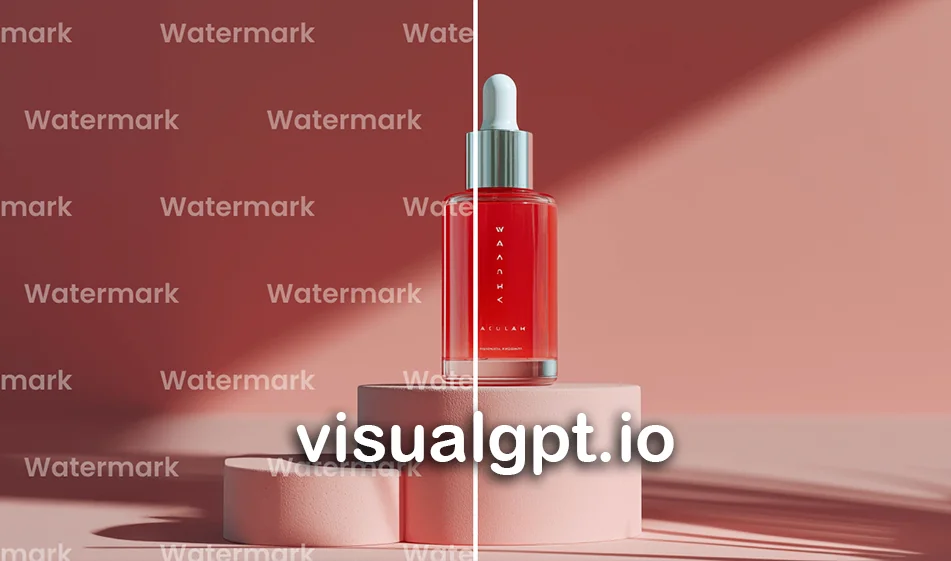
🧭 Compass Tip: VisualGPT —ahandytoolfor quickly removing watermarks from images
Tool link: https://visualgpt.io/
What does the tool do?
- It helps you remove watermarks from images, then attempts to restore the background and fill in the area previously covered by the watermark so that the result looks as natural as possible.
- It works directly in your browser, without the need to download software or install extensions.
When is it actually useful?
- When the image belongs to you or you have clear permission to use it, such as:
- Removing a watermark you placed on an old demo version.
- Cleaning up a product image before publishing it or using it in a new design.
- Removing text or unimportant internal stamps from your own images (and then re-adding your official logo later).
Warning: Do not use the tool to remove watermarks from images you do not own or have permission to use, as this exposes you to copyright issues and damages your credibility.
✅ Step-by-step instructions (clear)
- 1) Upload the image
- Choose a version with as high a resolution as possible, as the input quality directly affects the restoration quality.
- 2) Start the removal
- The tool will often automatically remove the mark and then restore the affected area.
- 3) Carefully review the result
- Focus on:
- The edges of the area where the mark was
- Gradations in the background
- Fine details such as hair, fabric, patterns, or eyes
- 4) Refine the result if artifacts appear
- Try reprocessing it a second time.
- If the mark is over complex details, expect that you may need two or more attempts to achieve a cleaner result.
- 5) Export the final image
- After ensuring the image is clean, save it and use it in your design or advertisement.
🎯 Tips from Busla for a cleaner result
- Use an uncompressed image whenever possible (don’t upload a low-quality copy from WhatsApp).
- If the logo is on a simple background, the result is often excellent on the first try.
- If it’s on top of complex details (face/hair/pattern), select:
- “Natural Restoration”
- “No excessive smoothing”
- “Preserve details”
- After removal, if you notice excessive smoothing in the area:
- Increase the sharpness slightly in any simple photo editor, or use image enhancement if available.
💰 Note on the free version
- There is often limited free usage or a trial period, after which operations are billed via credits or a plan depending on the platform.
- Tip: Test on a single image first before processing a large batch.
📍 Compass Summary
A watermark removal tool is very useful when you use it on your own photos: you upload the image, remove the watermark, and receive a cleaner version ready for design or publication, though you should review the fine details before approving the final result.